How to install Legacy4J starts with identifying the Minecraft Java version and mod loader in the profile you plan to use. Choose a Legacy4J file that matches both, add it through your launcher or mod manager, and test a new world before bringing in other mods. The project distributes version-specific builds, so a file with the newest-looking number can still be wrong for your setup. This guide covers the checks, installation, verification, updates, and common fixes.
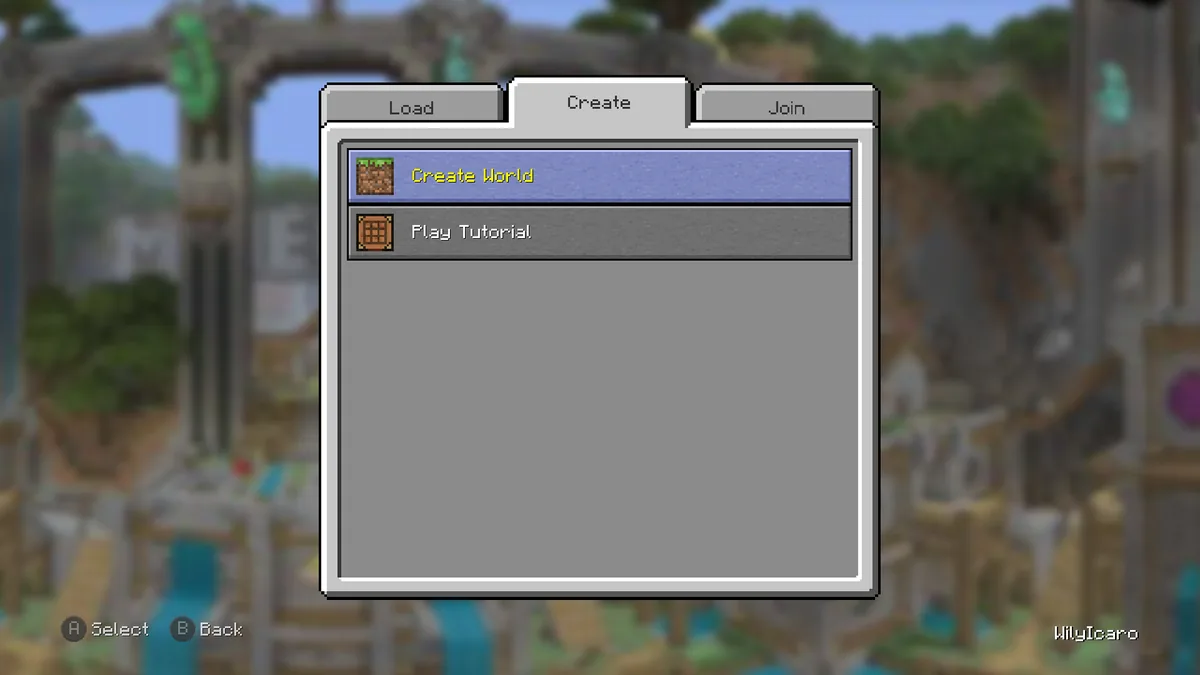
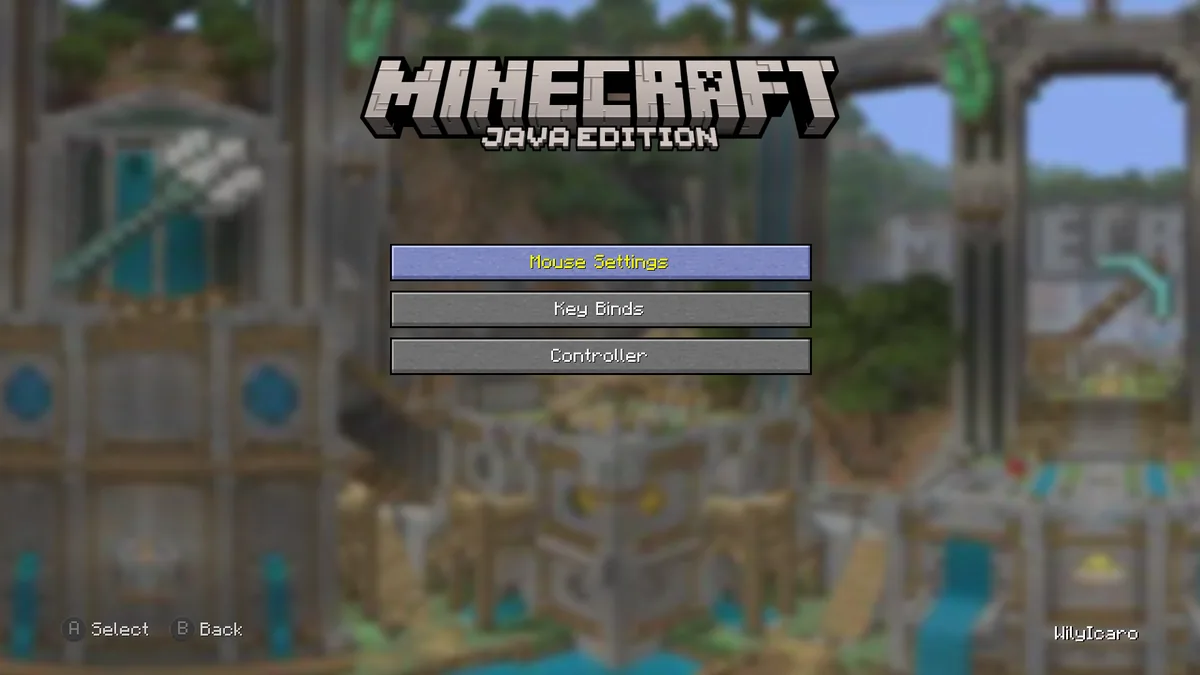
Legacy4J gallery screenshot from Modrinth. This is a Java Edition mod experience, not a downloadable console game build.
November 5, 2026, using the Modrinth project page and version API
Download route
Select the matching Minecraft version and loader on Modrinth; the metadata file URL was not independently tested as a binary download
before you start
How to install Legacy4J in a separate Java profile
Legacy4J is a community mod for Minecraft Java Edition with a console-inspired interface. It is separate from Legacy Launcher, the desktop app associated with Legacy Console Edition searches, and does not install Minecraft or grant game ownership. If you meant the desktop LCE launcher, start with the Legacy4J versus Legacy Launcher comparison.
Open the Java profile you plan to use and record its Minecraft version and loader. Profiles can differ in game version, loader, Java settings, mods folder, and saves, even when their names look similar. Check the profile details before downloading a JAR.
Create a separate test profile and back up important worlds. Keep the original profile untouched so you can compare behavior and return to a known working setup.
Use a Java Edition profile that can load mods.
Back up worlds before testing a new mod profile.
version matching
Choose a Legacy4J build that matches Minecraft and its loader
Legacy4J is not one universal JAR. Modrinth lists files by Minecraft version and loader. The latest API record we checked on November 5, 2026 was 1.21.10-1.9.1-fabric for Minecraft 1.21.10 and Fabric. It is a current example, not the right file for every profile or proof that other compatible branches do not exist. That is how to install Legacy4J on an older supported profile too: choose its matching game and loader pair instead of moving a newer JAR backwards.
On the official project page, filter by the exact game version and loader in your profile, then read the release entry. Install any dependency it names only if that dependency also matches the profile. If no result matches both values, change the profile deliberately or wait for a compatible build; do not force a nearby version.
A real Legacy4J Modrinth gallery image. Check controller and interface behavior only after the matching Java profile has loaded.
Minecraft versionMust equal the game version selected for the profile, not simply the newest version available.
LoaderMust match the file label exactly, for example Fabric or NeoForge.
DependenciesInstall only dependencies listed for that release and compatible with the same profile.
Unclear or mismatched fileDo not install it until the project page confirms the game and loader combination.
installation
Install Legacy4J into the intended Java profile
Here is how to install Legacy4J in a managed profile: install the loader first, select its profile, then add the mod to that profile's collection. A built-in mod browser or instance manager is usually clearest: confirm the Minecraft version and instance before applying the file. Avoid a guessed global folder when your launcher separates instances.
For a manual setup, download the matching JAR from Modrinth and check that it is the mod file, not a source archive or installer. Open the selected profile's game directory. If its mods folder is missing, launch and close the loader profile once; then create the folder only in the confirmed instance and place the JAR there.
Add a required dependency only when the release entry names it, and put it in the same profile. Keep one copy of each mod. Do not add another loader, duplicate Legacy4J versions, or files for a different Minecraft version.
Confirm the profile's game version and loader.
Add the matching release and named dependencies.
Keep all files in that profile's mods folder.
Leave the clean profile untouched for comparison.
first launch
Verify that Legacy4J loaded before adding more mods
Start the test profile and wait for the main menu. Check the launcher's mod list, loader screen, or game log for Legacy4J; a successful launch alone does not prove it loaded. Look for the expected menu changes before opening an important save.
Create a temporary world. Confirm it opens and test keyboard and mouse first. Then check the controller option you need. Add Steam Input or a separate controller mod only after the base profile works, so a mapping conflict does not obscure an installation problem.
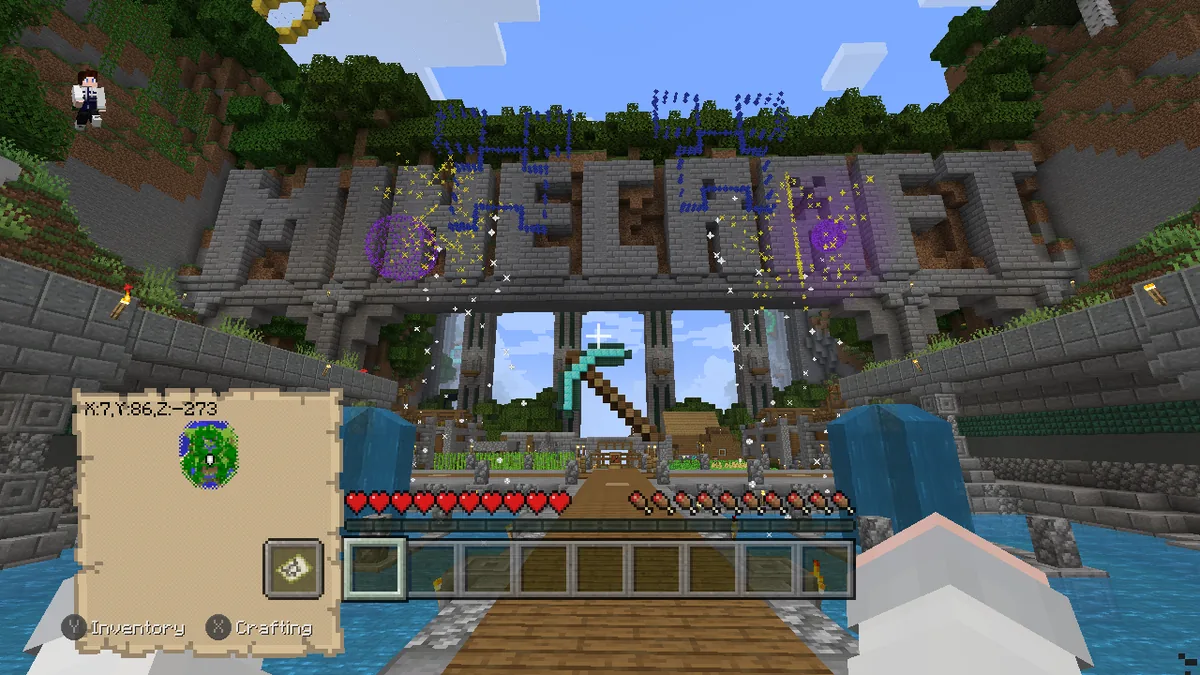
The gallery screenshot below shows a tutorial area, but menus can vary by release, language, resource pack, and settings. Use the installed profile and its log to verify your setup.
Project gallery screenshot of a tutorial environment. Use the actual profile's mod list and log to confirm installation.troubleshooting
Fix common Legacy4J installation problems
If Minecraft closes before the menu, remove Legacy4J from the test profile and launch once more. If the clean profile starts, check the JAR's game version and loader, then read the first crash report for a missing dependency or incompatible mod. Add back only files confirmed for that profile; reinstalling the launcher first can hide useful instance details. If you need to retry how to install Legacy4J after a crash, return to the clean test profile and change one file at a time.
If the game starts but Legacy4J is absent, confirm that you selected the loader profile and used its own mods folder. Check that the download is complete and ends in .jar. Managed, portable, and stable instances may use different directories even when their profile names are similar.
For a missing dependency, follow the release entry or error message and match the dependency to the same game version and loader. For an unsupported version or class, remove duplicate or mismatched mods before changing Java arguments. Keep the first crash report and note the Minecraft version, loader, Legacy4J filename, and other mods when asking for help.
If only controller input is inconsistent, test keyboard and mouse first, then check controller settings, Steam Input, and other input mods one at a time. Keybind conflicts or multiple input layers can cause this without stopping the core mod from loading.
Crash before menuCheck game version, loader, dependency messages, duplicate files, and the first crash report.
Mod does not appearConfirm the selected loader profile and its own mods folder; check the JAR extension.
Controller issue onlyVerify the base mod first, then test controller settings and input layers separately.
updates and removal
Update or remove Legacy4J without risking a working profile
Before updating, check the release's game version and loader, save the mod list, and back up important worlds. Replace the old JAR unless your launcher manages that step; two Legacy4J versions in one folder can conflict. Update a dependency only when the release information requires it.
To remove Legacy4J, close the game and move its JAR out of that profile's mods folder. Remove a dependency only if nothing else uses it, then launch the profile to check the remaining mods. Keep backups separate until you have checked the worlds you need.
Use the project source and keep game ownership separate
Modrinth's version API returned 1.21.10-1.9.1-fabric as its latest record when checked on November 5, 2026; metadata lists Minecraft 1.21.10, Fabric, a 26,964,065-byte JAR, and an August 29, 2026 publication date. We did not independently test its CDN URL as a binary download, so use the official project selector and recheck the release when installing.
Use Modrinth or its linked source repository and compare the file with the profile filters. Avoid mirrors that hide the project, version, or file identity. This guide does not claim a malware scan. Legacy4J does not provide a Minecraft license, paid game files, account bypass, or retail Bedrock support.
The short version of how to install Legacy4J is to match game, loader, release, and profile. Select a matching file, add it to that profile, then confirm it appears in the loader list or log.
Which Minecraft version works with Legacy4J?
Choose a version listed for your selected file. The Modrinth record checked November 5, 2026 targets Minecraft 1.21.10 with Fabric; another profile may need another release.
Does Legacy4J use Fabric or NeoForge?
The project lists different game and loader combinations. Follow the selected file's labels and do not mix loader builds in one profile.
Where do I put the Legacy4J JAR?
Use the mods folder for the exact profile you will launch. Managed instances can have separate directories, so confirm the profile path.
Why does Minecraft crash after I install Legacy4J?
Check version and loader mismatches, missing dependencies, duplicate files, and the first crash report in a clean profile.
Is Legacy4J the same as Legacy Launcher?
No. Legacy4J is a Java Edition mod; Legacy Launcher is a separate desktop app for LCE-related workflows. See the comparison guide.